OBSAH
Base material for configuration is single-pole project diagram (SPD) and installation checklist. In these documents you find information about connected components, their communication interface and settings.
Project documents
Single-pole project diagram (SPD)
You can find the single-pole project diagram in the appendix at the end of the article.
[EMS_FULL_SPD.pdf]
Checklist
You can find the installation checklist in the appendix at the end of the article.
[EMS_FULL_CHECKLIST.pdf]
Configuration
Organize
We begin with the "Organize" menu. This is usually based on single-pole project diagram (SPD). In case some information is missing in SPD, universal labels for building / floor / room and switchboard are used.
Complete organisation must be used prior next steps, because components are during creation placed into switchboard, which is created as last in hierarchy.

Assignments
Based on switchboard documentation we find out which type of switchboard is used and we configure HW accordingly to that. Example documentation is in the appendix of the article.
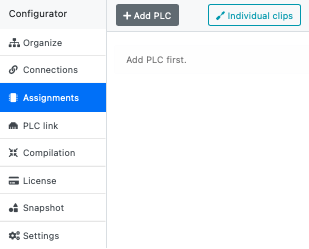
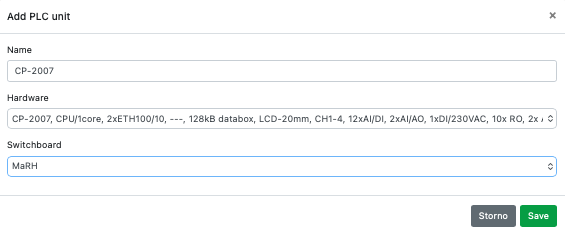
To add hardware, we use button "Add PLC" on top left corner. From documentation we know type of PLC, in this case it is CP-2007.
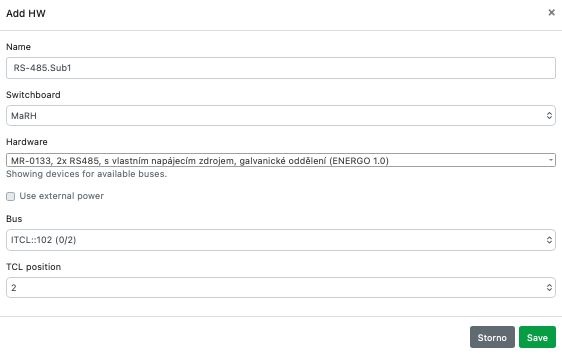
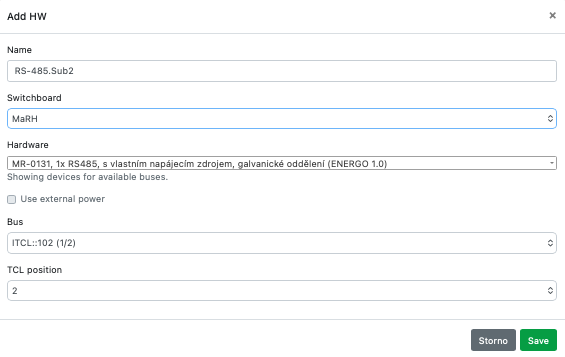
In the next step, we need to find out which expansion submodules are used in PLC. Usually these modules extend the number of RS485 bus channels. Modules are listed on switchboard documentation on page 2. In this case first is submodule MR-0133 and second one is MR-0131 with only one RS485 bus and termination impedance 120R. To add these submodules we use again button "Add HW". After adding these submodules will appear in tables under ITCL section.
From documentation we know, that two modules for digital inputs IB-1301 are used. Again using "Add HW", we choose IB-1301 hardware this time, with corresponding address on TCL bus. Address is in documentation highlighted on these modules next to rotatory switch with red circle. First expansion module has the TCL position 1 by standart, second expansion module has TCL position 2. These addresses must be set correctly for proper functionality!
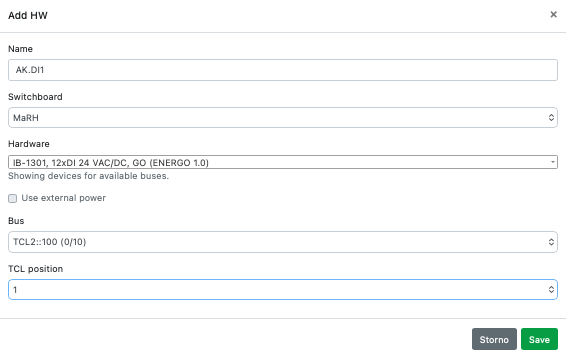
As soon as the PLC is configured, we can proceed to the connection test. Modules and submodules can be added also later, but PLC type will be bind with serial number used for registration.
PLC link
For PLC internet connection verification and registration of specific PLC to the project we use menu "PLC link". Before registration of PLC, the text field for entering the serial number of unit is displayed.
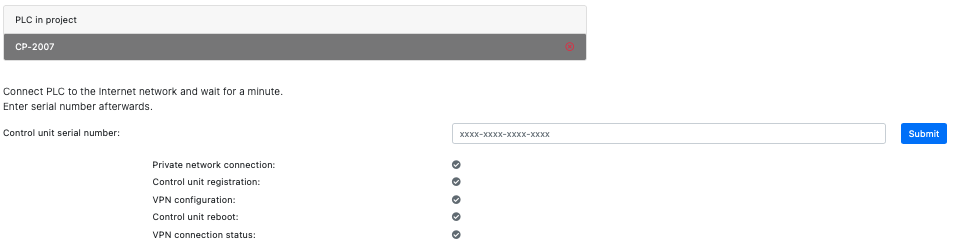
Serial number of unit is often included in Checklist and it is also recommended to ask for photo od PLC's display, because sometimes during the writing down the serial number mistakes are made and PLC than cannot be registered.
if entered correct serial number, after "Submit" the verification is performed, whether the PLC is connected to the server and is waiting for assignment to the project. If so, 5 green checkmarks will appear one after another and PLC will be connected with the project. Since this moment it is possible to send programme to PLC and work on project configuration.
if registration is not performed, usually there is a problem with internet connection on PLC. VPN connection state can be verified on PLC's display as well.
| Register PLC | 100 |
| Init VPN unavailable | 101 |
| Init VPN failed | 102 |
| No VPN profile | 103 |
| Connected | 104 |
| VPN unavailable | 105 |
| Bad VPN address | 106 |
| Not connected | 107 |
| Obsolete config | 108 |
| No VPN config | 109 |
| Error unknown | 110 |
After successful PLC registration the screen will change to following one.
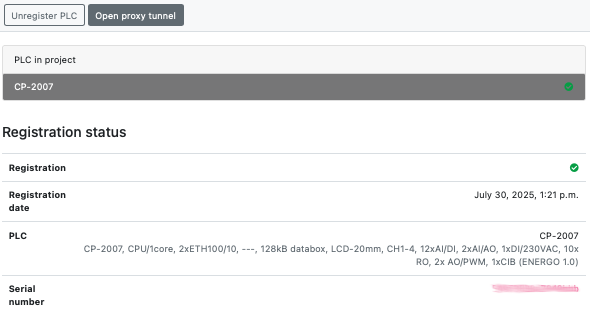
It is possible to delete PLC from project using button "Unregister", but only if the PLC is ONLINE!
Connections
Based on configuration of given version EMS and single-pole project diagram we begin to create programme using menu "Connections".
We begin with adding main service EMS.
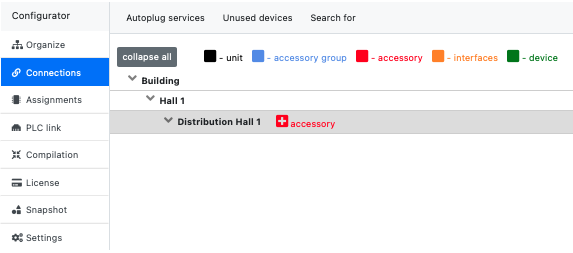
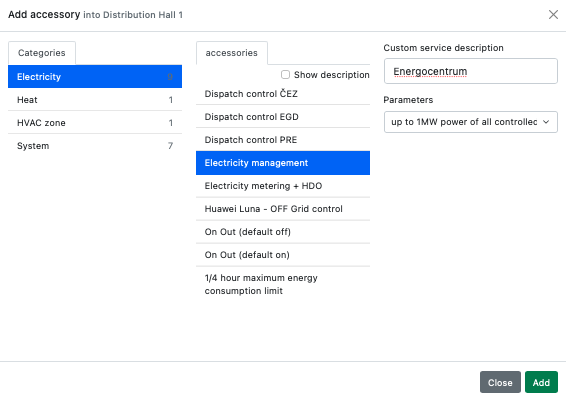
Expand the menu "Building / Hall 1 / Distribution Hall 1" and click on item "accessory". Menu will open, offering the accessory, which can be added into this category. Search in category "Electricity" for service "Electricity management". After selecting the service, we can overwrite the label (name it for example "Energocenter") using item "Custom service description", under which it will be shown in configurator. Also use item "Parameters" to select proper power plant size, since license pricing is based on it. Information about power plant size can be found in checklist - in this case it is "up to 1MW power of all controlled devices".
Each energocenter (EMS) for proper function requires information from energy meter on point of transfer (metering point). Use the option "Device" under "Electricity management" and add electricity meter in list of devices.
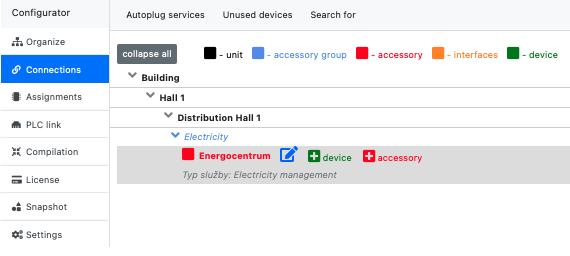
Electricity meter
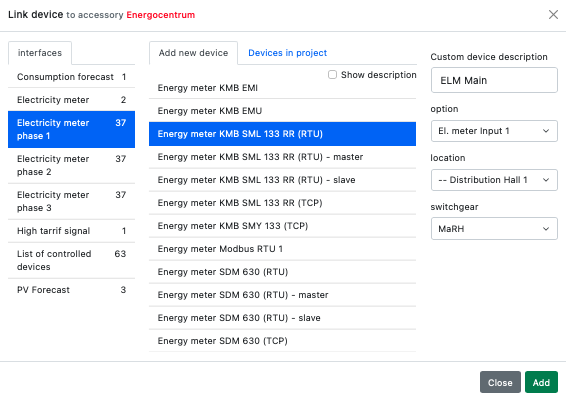
Documentation does not contain specific electricity meter model, nonetheless the KMB SML 133 RR (RTU) model is used. We recommend to label the device for better clarification of its purpose (whether main, secondary measurement for PV or BESS) like "ELM MAIN". For electricity meters measuring 3 phases it is required to "Add new device" for 1st phase and for remaining two phases pick the meter from existing devices and only map the information from meter to correct phase. Now, for item "Option" we choose "El. meter Input 1".
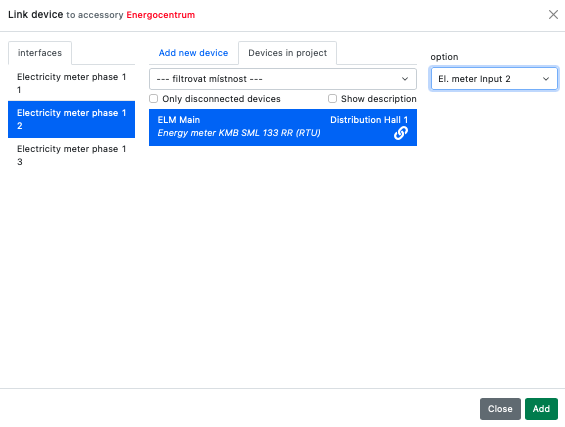
To configure inputs for phase 2 and 3 we again under "Electricity management" add device, but this time we select the pane "Devices in project". As interface we pick the "Electricity meter phase 2", select the existing meter "ELM MAIN" and in item "Option" we choose "El. meter Input 2". We continue for 3rd phase input of meter analogically.
Secondary meters
If project contains more electricity meters, which serves for monitoring or accounting purposes, it is necessary that those meters are not added under "Electricity management", because this is reserved only for main electricity meter.
Project contains two older photovoltaic power plants. We will monitor their production with additional electricity meters. Thus, we have to add two additional meters.
On hierarchical level of project "Distribution Hall 1", click on option "Accessory". In menu select category "Electricity" and accessories "Electricity metering + HDO" and click "Add".
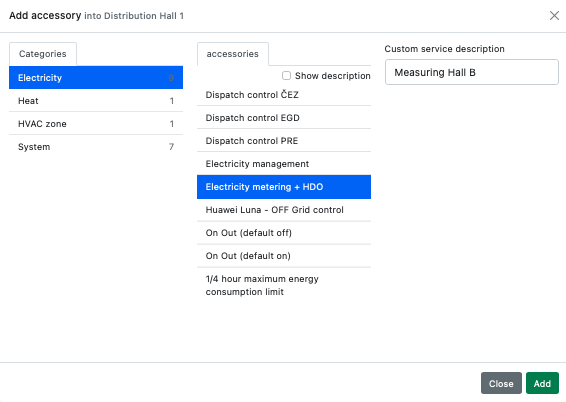
We follow the same procedure to add measurement "Distribution Hall C".
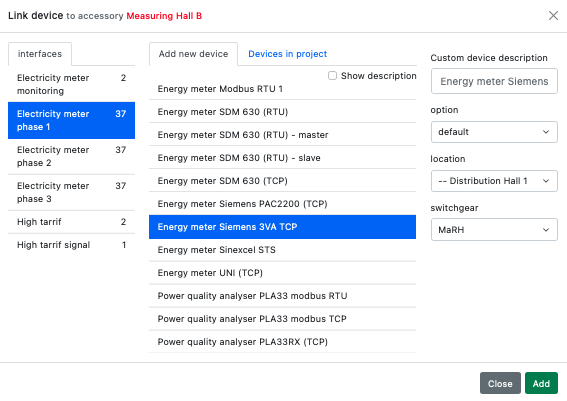
Under newly created category it is possible to add the electricity meters for auxiliary measurement. In category "Electricity metering + HDO" click on option "Device". In menu then for "Electricity meter phase 1" select based on documentation "Energy meter Siemens 3VA TCP". We follow the procedure used for main electricity meter to add the meter mapping for phases 2 and 3.
PV
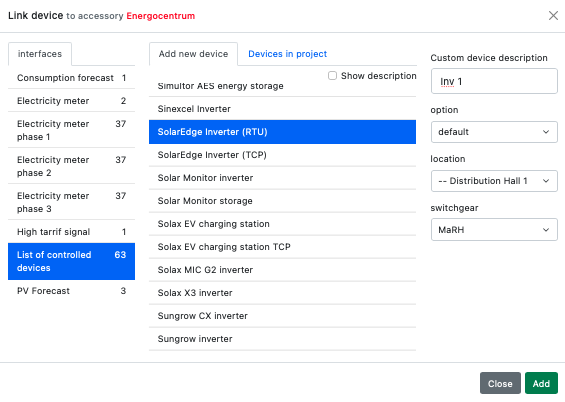
From single-pole project diagram we know, that SolarEdge inverters and SMA DataManager are used. Using button "Device" on "Electricity management" we display the menu with available devices. This time, we select "List of controlled devices" and "SolarEdge Inverter (RTU)" and then click "Add".
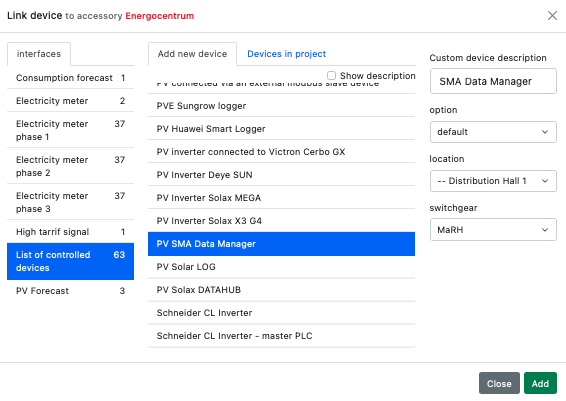
In the next step using button "Device" we add SMA Data manager to the power plant. This time we choose "List of controlled devices" and "PV SMA Data Manager".
BESS / Battery storage
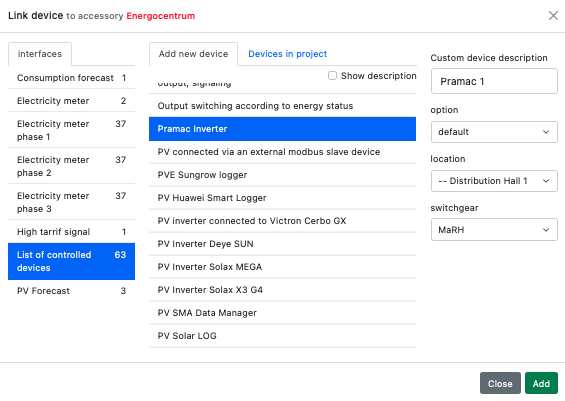
From checklist we know, battery storage has 540 kWh, using Pylontech batteries and Pramac inverters. Using button "Device" on "Electricity management" we display the menu with available devices. This time, we select "List of controlled devices" and "Pramac Inverter" and then click "Add". We add both inverters this way.
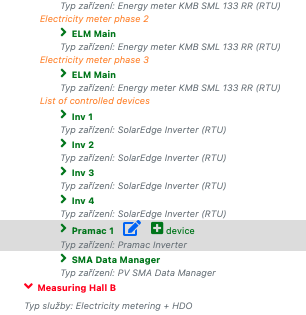
It is necessary to connect batteries to the inverters. In "List of controlled devices" we find specific inverter and add "Device".
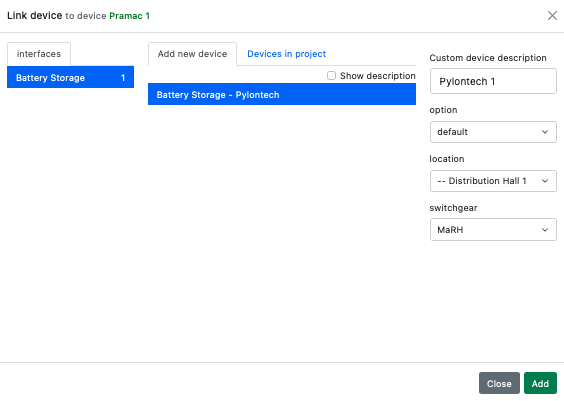
Open the panel "Add new device" and select "Battery storage" and specifically "Battery Storage - Pylontech". Because there will be more battery storages (2x Pylontech tower for Pramac 1 and 3x Pylontech tower for Pramac 2), label storages in a way, that is simple and clear. To save, press "Add". Repeat whole procedure, until all battery storages are connected to their inverters.
Configuration verification
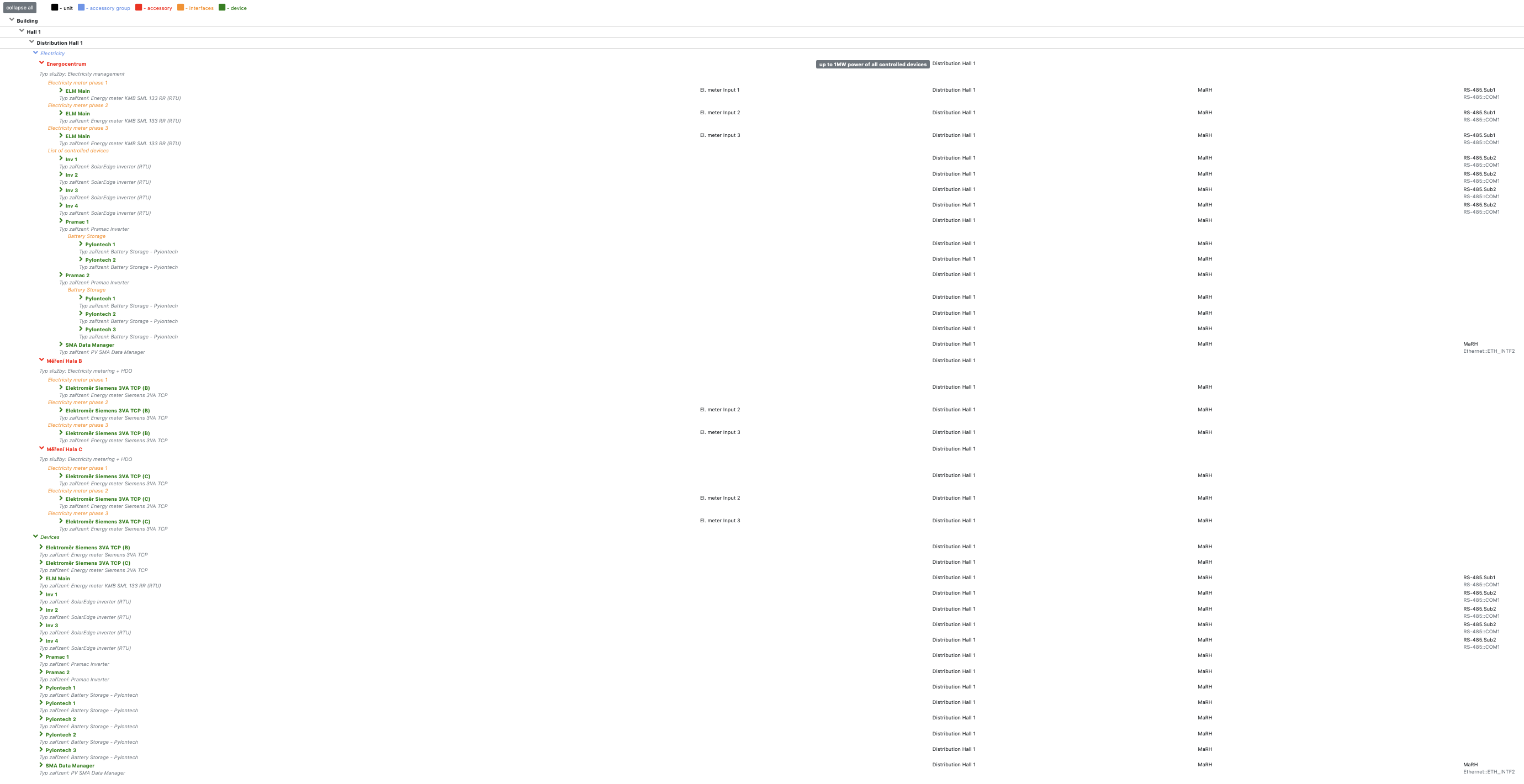
When everything is configured correctly, list should look like following.
Assignments
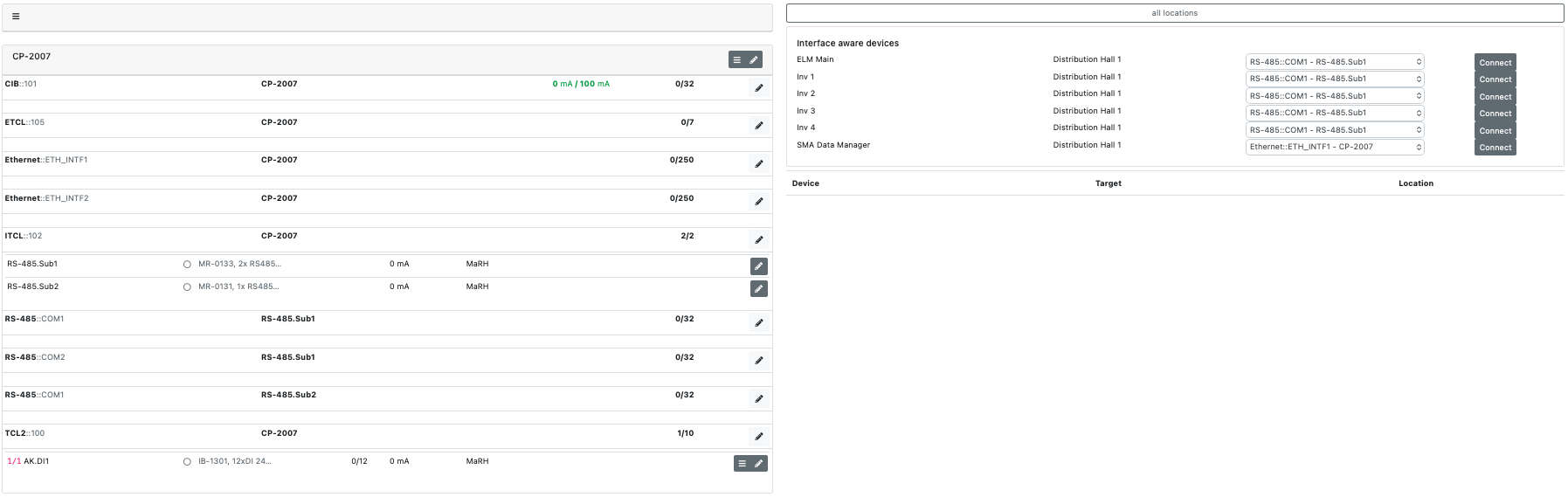
Project usually consists of devices and peripherals, for which is crucial to specify on which input or output they are connected. In this project it is needed to define interface for electricity meter "ELM Main", SolarEdge inverters and SMA Data manager. Interface for Pramac is defined as ETH2 by default. Select interfaces as following and click "Connect".
"ELM Main" over "RS-485.Sub1"
Inverters "Inv 1-4" over "RS-485.Sub2"
"SMA Data Manager" over ETH2.
Compilation
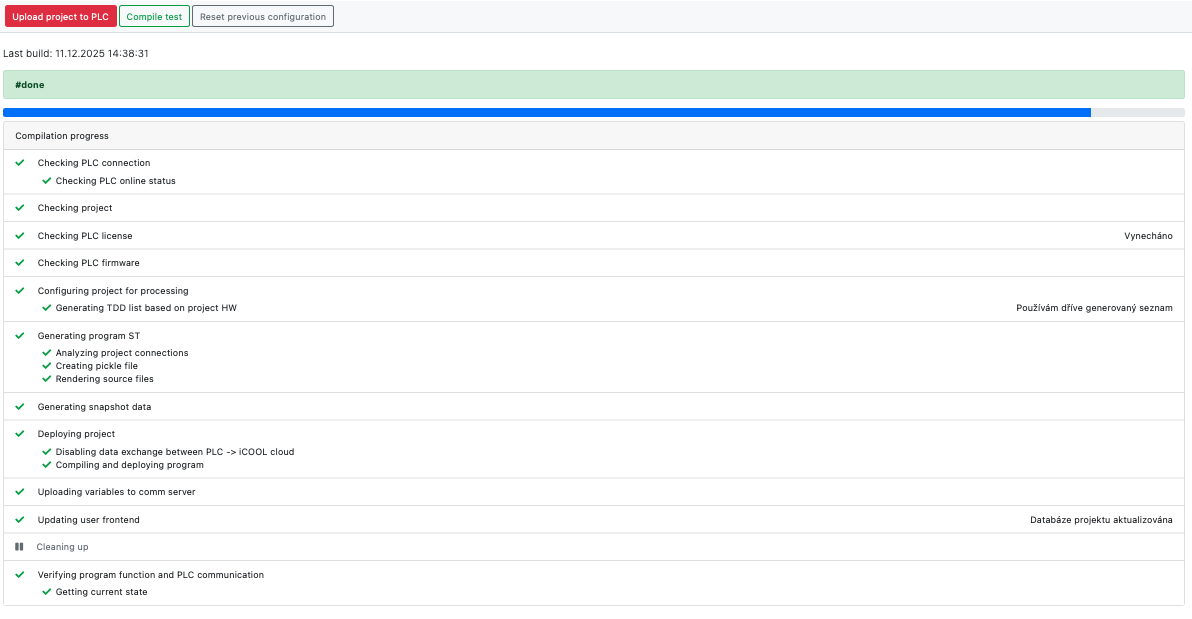
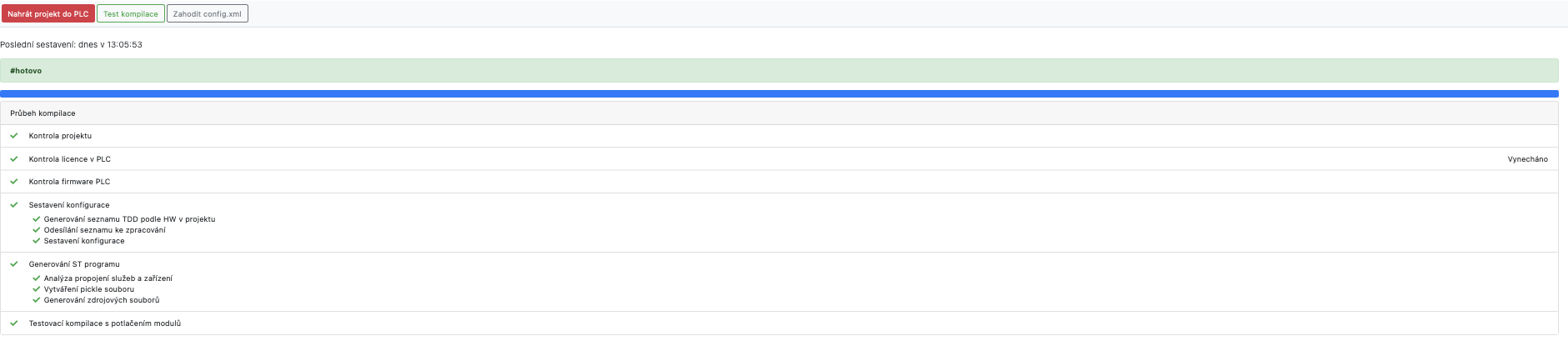
At this point project is configured and it is possible to try compilation, which verifies that all devices and services are configured as required. In menu "Compilation" click "Compile test". As soon as everything is done without any problems, it is possible to click "Upload project to PLC", which will create project on PLC including web interface.
prostředí.
Was this article helpful?
That’s Great!
Thank you for your feedback
Sorry! We couldn't be helpful
Thank you for your feedback
Feedback sent
We appreciate your effort and will try to fix the article